Storage and files
Data in ML TUKE lives on persistent volumes that survive both stopping and deleting a notebook.
-
Persistent
A volume exists independently of the notebook that uses it.
-
File browser
Browse files without starting a notebook.
-
Reusable
The same volume can be attached to a new notebook.
-
60 GB quota
Across all your volumes together, not per volume.
Quota
You have 60 GB of storage in total. The limit applies per user and counts all volumes together, not each volume separately.
Unused volumes still count
Volumes left behind by deleted notebooks stay in the list and keep using quota. If you are running out of space, go through the Volumes section and delete the ones you no longer need.
Volumes run in the nfs-kubeflow storage class in ReadWriteOnce mode.
Volume list
The Volumes section lists every volume in your namespace.
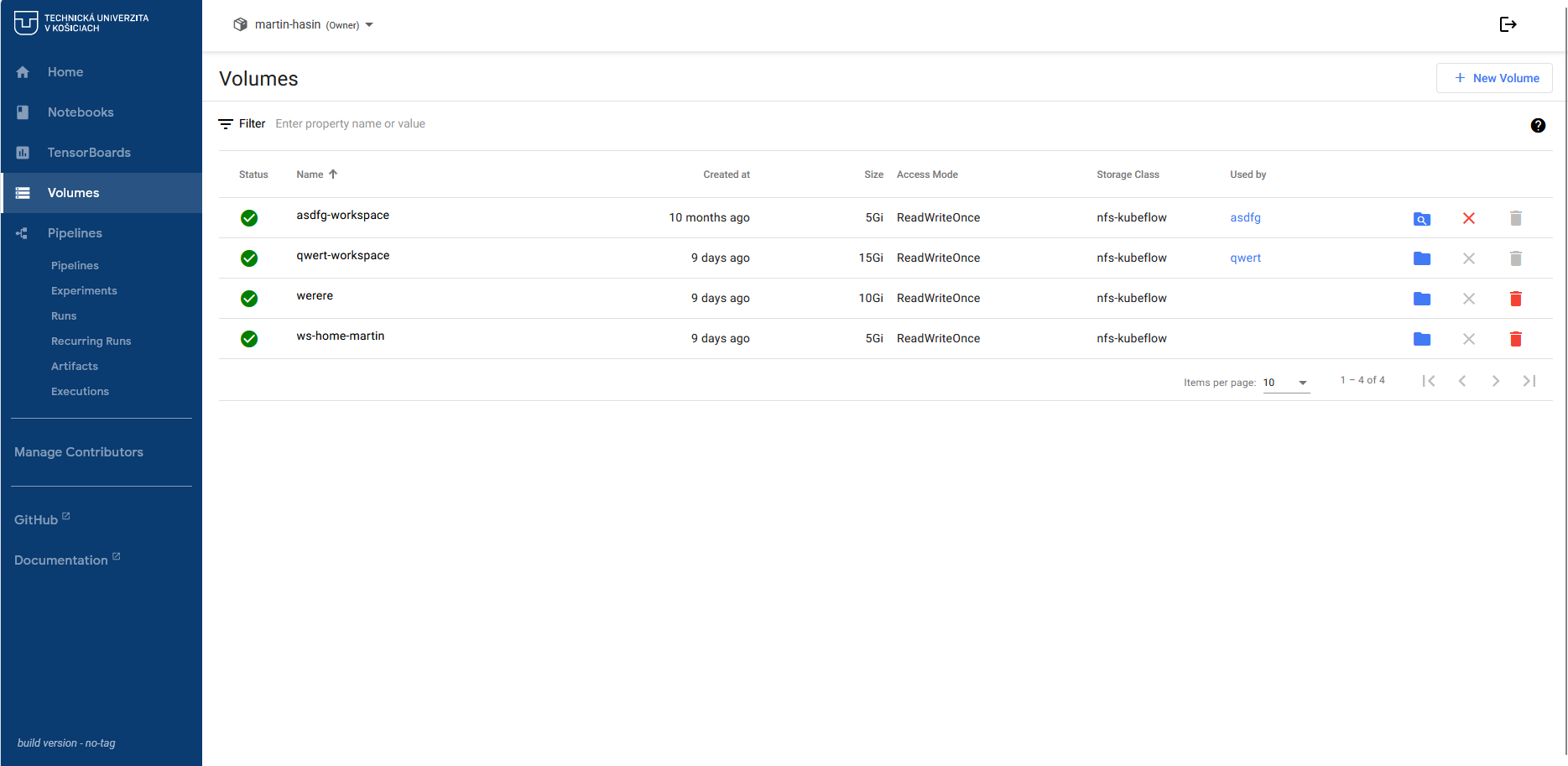
Each volume shows its status, name, creation date, size, access mode, storage class and a Used by column with the notebook currently using it.
| Action | Meaning |
|---|---|
| Folder | Opens the file browser over the volume |
| X | Detaches the volume from the notebook |
| Bin | Permanently deletes the volume and its contents |
A volume in use cannot be deleted
The bin is disabled for volumes currently used by a running notebook. Stop the notebook or detach the volume first.
How volumes are created
| Volume | When it is created |
|---|---|
| Workspace | Automatically with a notebook, mounted as the home directory |
| Data volume | Manually in the notebook form via + Add new volume |
| Standalone | With + New Volume in the Volumes section |
A workspace volume is named after its notebook, so notebook tester gets
a volume called tester-workspace.
Deleting a notebook does not delete its volume
After removing a notebook, its workspace volume stays in the list. Delete it separately if you no longer need it, otherwise it keeps using quota.
File browser
The blue folder icon next to a volume opens the web File Browser. It works even when no notebook is running.
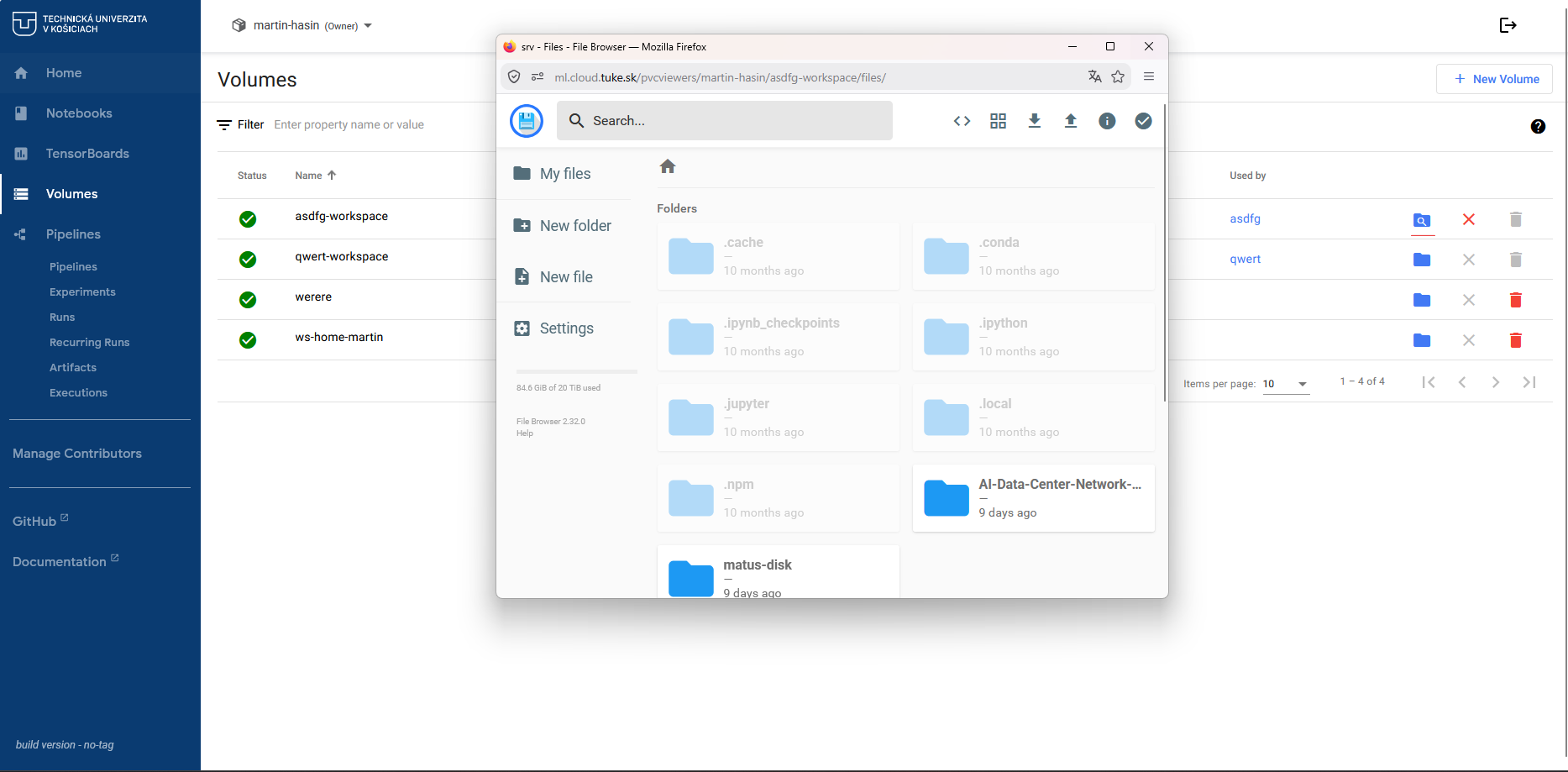
The address follows this pattern:
In the browser you can:
- browse the volume including hidden directories
- upload and download files
- create folders and files
- delete and rename
When it helps
When you need to quickly download a result or upload a dataset and would rather not start a whole notebook for it.
Attaching an existing volume
You can attach a volume with data to a new notebook and carry on working:
Create a new notebook
In the Notebooks section click + New Notebook.
Add the volume
Under Data Volumes choose + Attach existing volume and pick the volume from the list.
Launch the notebook
After clicking LAUNCH the volume is mounted and its contents appear in the notebook.
One volume in one notebook at a time
Volumes use ReadWriteOnce mode, so they cannot be attached to several running notebooks simultaneously.
Frequently asked questions
Does data survive stopping the notebook?
Yes. The volume is persistent and after restarting the notebook you find everything exactly as you left it.
Does data survive deleting the notebook?
Yes, the volume remains. It is deleted only when you remove it with the bin in the Volumes section.
How do I enlarge an existing volume?
The size is fixed at creation. If you need more space, create a larger volume, copy the data across and delete the original. You have to fit within the 60 GB quota, so delete the old volume right after copying. For larger requirements contact support.
Where is the shared folder for lab exercises?
That is a separate feature enabled when creating a notebook.