Projects and repositories
Registry content is organised into projects. Each project has its own quota, members and security settings.
-
Project
The basic unit. It carries access rights and the quota.
-
Repository
One image name within a project, for example
example-app. -
Artifact
A specific image identified by a digest; it can carry several tags.
-
10 GiB quota
Per project, not per repository.
Project list
After signing in you see the projects you have access to.
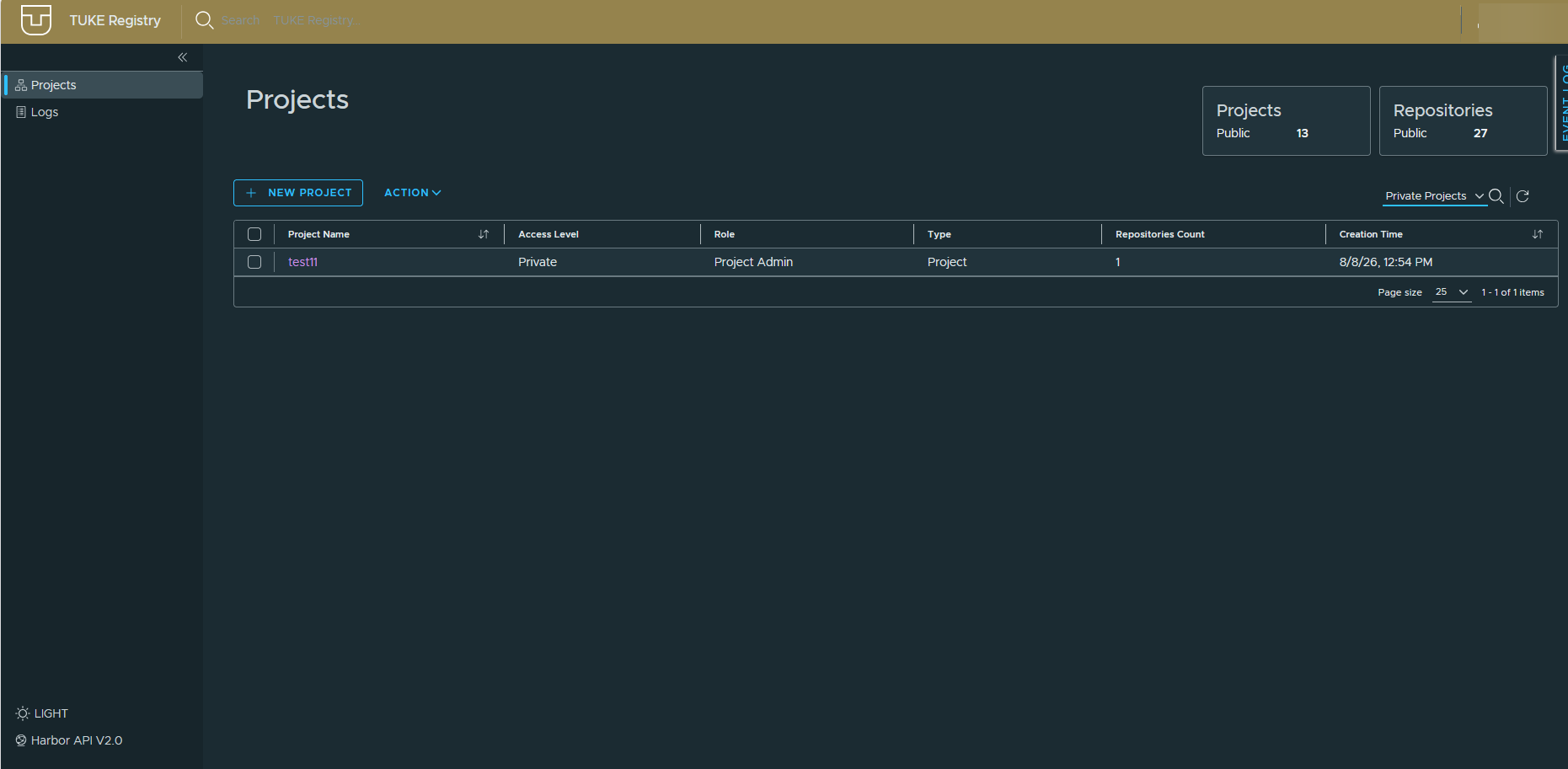
The table shows the name, access level, your role, type, repository count and creation time. The switch on the right filters between private and public projects.
| Level | Who sees the content |
|---|---|
| Private | Project members only |
| Public | Anyone; pull works without signing in |
Create a new project with + NEW PROJECT. Use lowercase names without spaces.
Repositories in a project
Opening a project lands you on the Repositories tab.
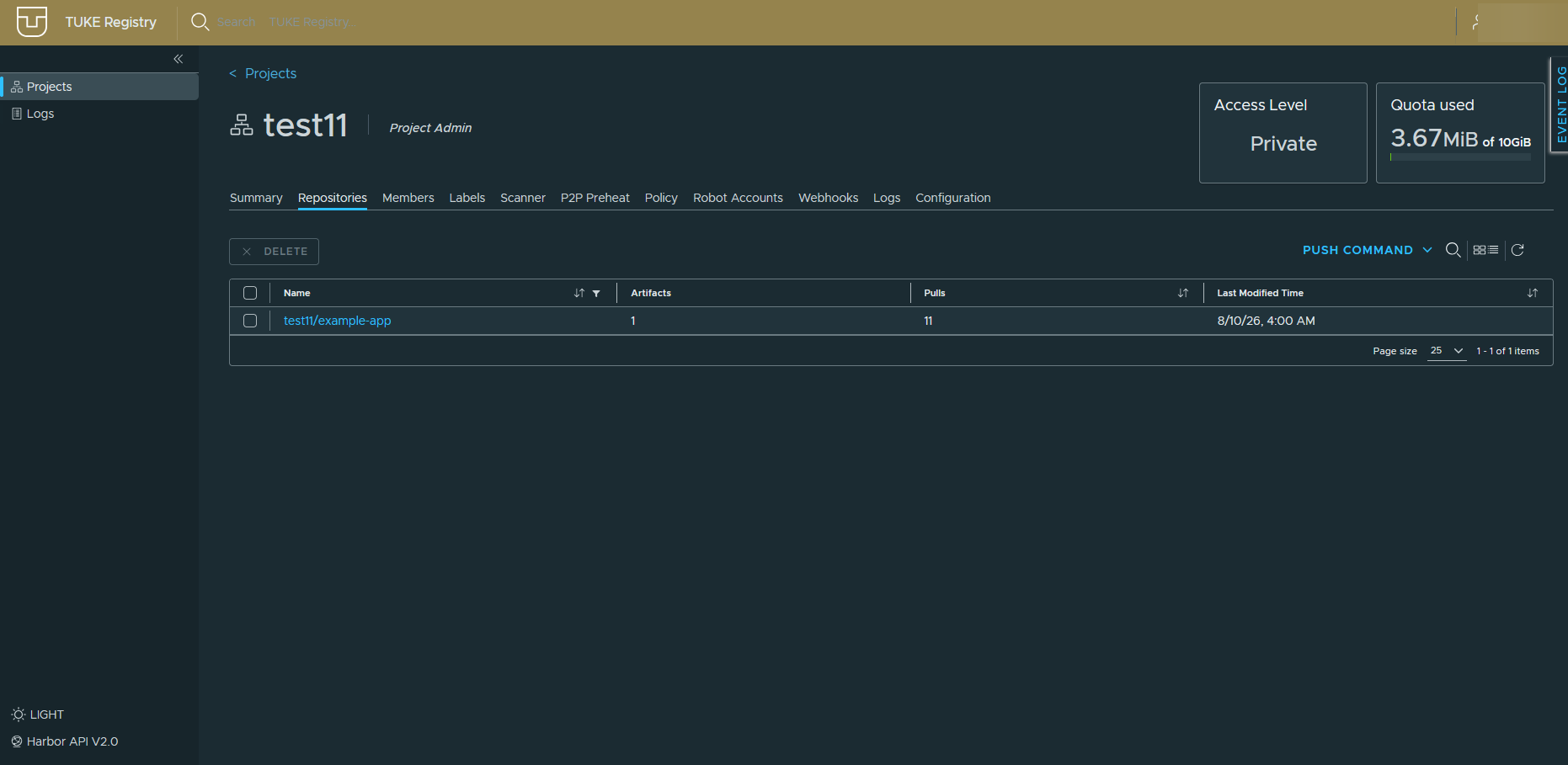
In the top right are Access Level and Quota used, showing how much of the quota the project takes.
The quota is 10 GiB per project
The limit counts the whole project, not individual repositories. Once it
fills up, further docker push calls fail. Free space by deleting old
artifacts or by setting tag retention rules.
The PUSH COMMAND button shows a ready-made docker push command with the
project name already filled in.
Artifacts
Clicking a repository takes you to its artifacts.
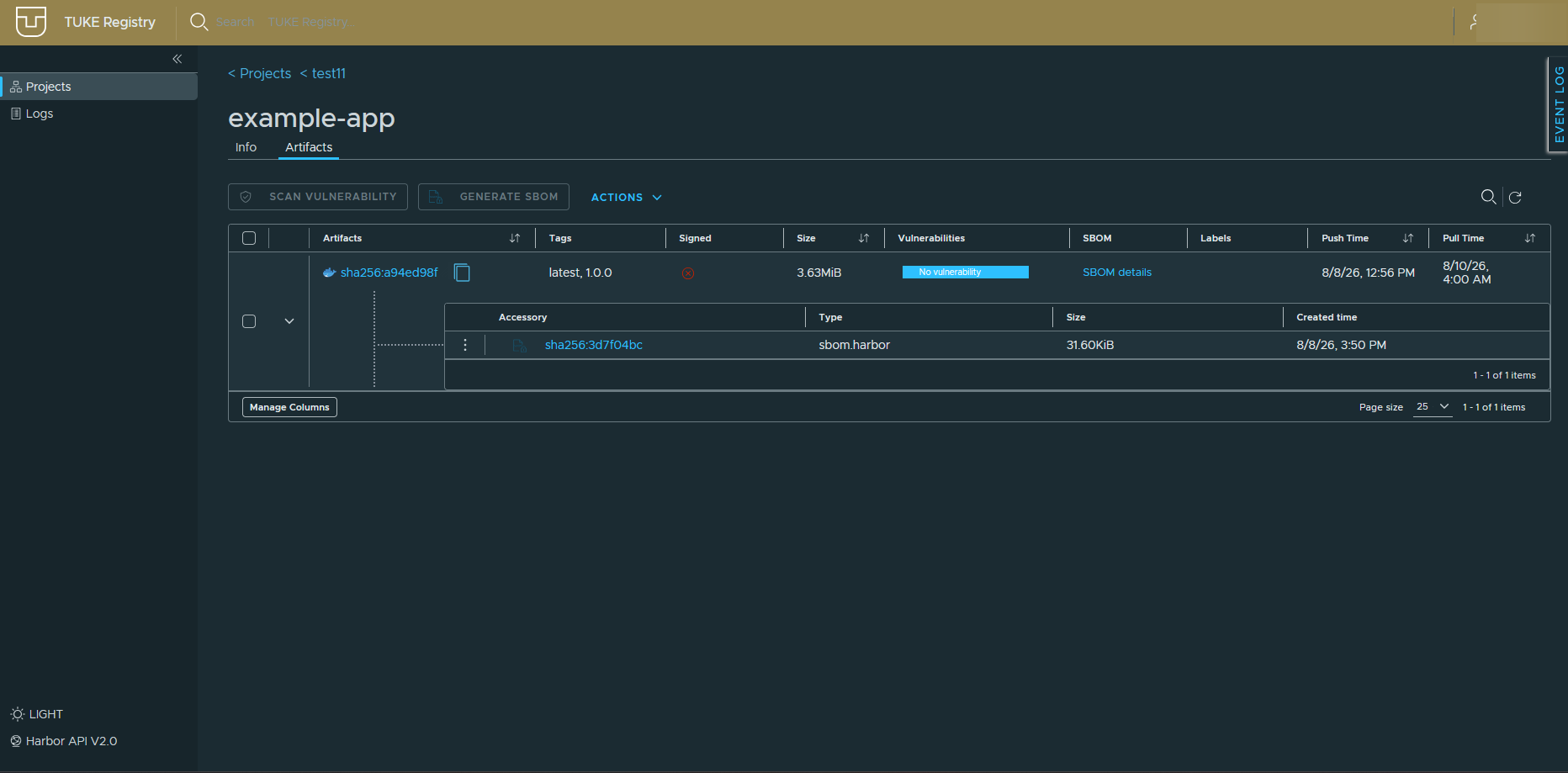
Each artifact shows its digest, tags, size, vulnerability scan result, a link to the SBOM and the push and last pull times.
| Action | What it does |
|---|---|
| SCAN VULNERABILITY | Runs a vulnerability scan manually |
| GENERATE SBOM | Generates a list of the image components |
Expanding a row reveals attached accessories, such as an automatically
generated SBOM of type sbom.harbor.
Artifact detail and tags
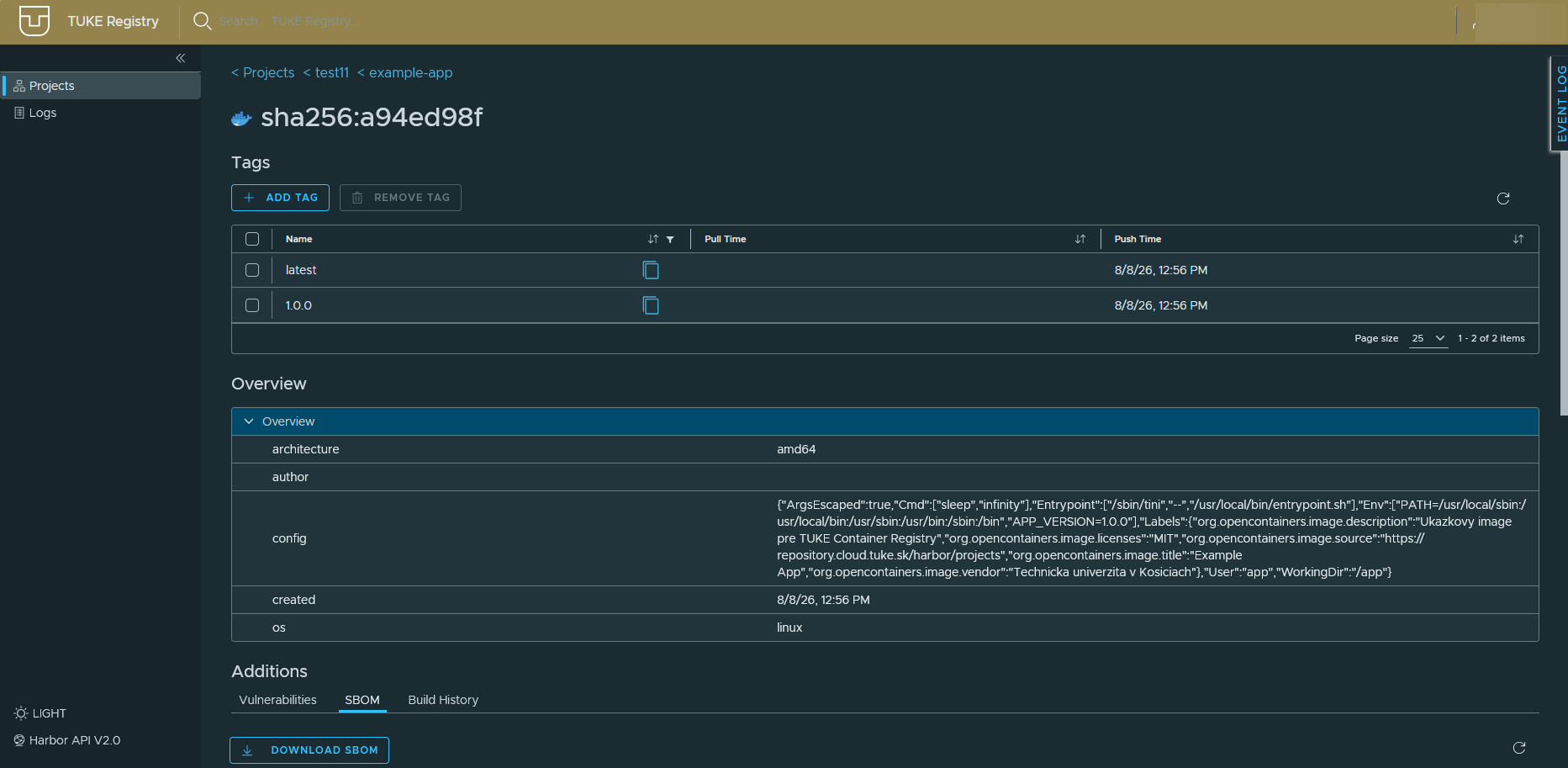
The Tags section lets you add and remove tags. Several tags can point at
the same digest, for example latest and 1.0.0 on the same image.
Overview holds the image metadata: architecture, operating system,
creation time and the full configuration including Entrypoint, environment
variables and OCI labels.
OCI labels are worth filling in
If you add labels with a description, licence and source repository, this view tells you exactly what the image was built from.
At the bottom, Additions contains the Vulnerabilities, SBOM (with a DOWNLOAD SBOM button) and Build History tabs.
Frequently asked questions
What is the difference between a tag and a digest?
A digest (sha256:…) is an immutable fingerprint of the image content.
A tag is a movable pointer that can be repointed at another image. In
production, referring to a digest is more reliable.
Why did my push fail on the quota?
The project reached 10 GiB. Delete old artifacts or set tag retention rules that remove them automatically.
Does every tag take up space separately?
No. If several tags point at the same digest, the data is stored once. Space is used by image layers, not by tags.